
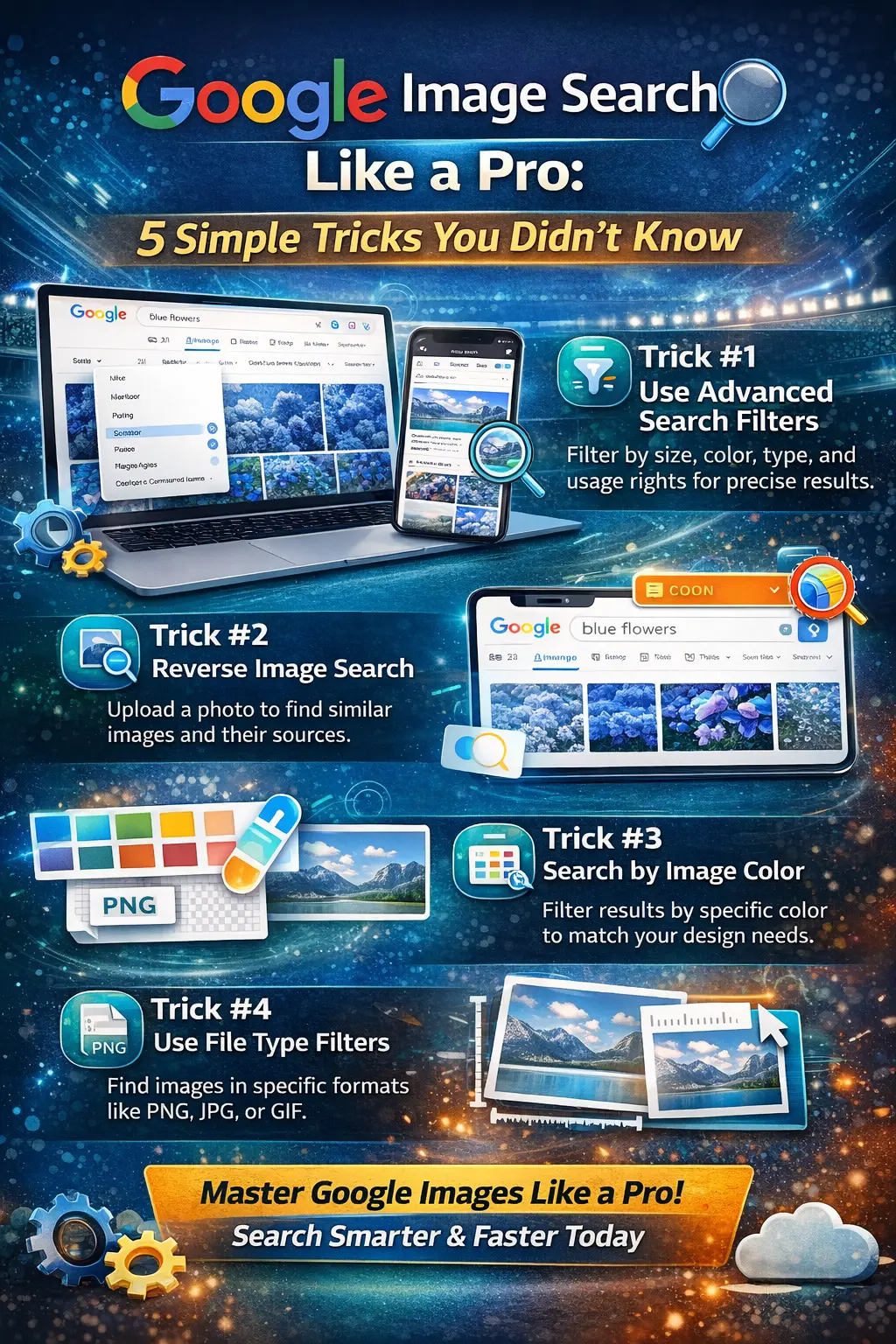
Google Image Search Like a Pro: 5 Simple Tricks You Didn’t Know
Google Image Search is an invaluable tool, whether you’re a designer looking for high-quality images for a project or a casual user searching for a quick picture. With 2026 ushering in new AI-powered search technologies and improved algorithms, now is the best time to optimize your image searches.
In this article, we will walk you through 5 actionable tricks to make Google Image Search faster, smarter, and more efficient, no matter your search needs. Whether you’re looking for royalty-free visuals, high-resolution images, or custom filters, we’ve got you covered. get an information about Servantful? A Modern Guide to Smart Service Solutions (2026).
Trick #1: Use Advanced Search Filters
Actionable Step:
- Step 1: In Google Image Search, type your query.
- Step 2: Click on the Tools button under the search bar.
- Step 3: Apply filters for size, color, type, and usage rights.
- Step 4: Refine your search to get more accurate results.
Modern Tech Tip (2026): With AI-powered filters in 2026, Google now suggests more relevant results based on previous searches and trends, so you can expect smarter search results with fewer manual adjustments.
Example:
Looking for royalty-free images of nature? Use the usage rights filter to find free-to-use images, and select the size that fits your project.
Trick #2: Reverse Image Search for Similar Photos
Actionable Step:
- Step 1: Open Google Image Search.
- Step 2: Click the camera icon in the search bar.
- Step 3: Upload an image from your device or paste the image URL.
- Step 4: Explore related images or discover the original source of the image.
Modern Tech Tip (2026): AI-powered reverse image search is now more accurate than ever. You can even drag and drop images directly into the search bar for even faster results, making image recognition seamless and highly efficient.
Example:
You find a logo online, and you want to know if there’s a higher-quality version available. Upload it to Google and get a better-resolution version or similar designs.
Trick #3: Search by Image Color
Actionable Step:
- Step 1: In Google Image Search, enter your query (e.g., “sunset”).
- Step 2: Click Tools, then Color.
- Step 3: Choose the dominant color for your search (e.g., orange, red).
- Step 4: Review the results for visuals that match the color you’ve selected.
Modern Tech Tip (2026): AI-enhanced color search has improved dramatically. Google now uses deeper color analysis to better match images based on subtle hues, giving you access to a broader range of shades and styles.
Example:
If you need images with a blue theme for your website design, simply filter results by blue and find images that fit your design needs.
Trick #4: Use File Type Filters
Actionable Step:
- Step 1: Perform a Google Image Search for your desired query.
- Step 2: Click on Tools and select Type.
- Step 3: Filter results by file type (PNG, JPG, GIF).
- Step 4: Choose the format based on your project (e.g., PNG for transparent backgrounds).
Modern Tech Tip (2026): With AI-driven format recognition, Google now understands your preferences for different file types and surfaces them more intelligently based on context.
Example:
For logos with transparent backgrounds, filter by PNG, making sure the search results show only usable formats for web design or app development.
Trick #5: Search by Image Dimensions
Actionable Step:
- Step 1: Enter your image search query.
- Step 2: Click Tools, then choose Size.
- Step 3: Select Exact size or use the preset large, medium, or icon options.
- Step 4: Fine-tune the search for images that match your specific dimensions.
Modern Tech Tip (2026): AI image scaling in 2026 allows Google to better recognize images with high pixel density, helping users find images optimized for web use, mobile design, and print materials.
Example:
You need an image with a 1200×800 px resolution for a blog post header. Use the size filter to find images that match your exact requirements.
Bonus Tips
Using Google Lens for Visual Search (2026)
Google Lens is now more integrated with Google Image Search, allowing you to take pictures of physical objects and search for them online in real-time. You can also drag images from your device into Google Lens to identify products or visual content instantly.
Example:
Take a photo of a painting and use Google Lens to get more information about the artist, related artworks, or even places to purchase similar items.
Conclusion
In this guide, we’ve outlined 5 actionable tricks to improve your experience with Google Image Search. Whether you’re a designer looking for high-quality images, or a casual user wanting quick, accurate results, these tricks will help you search smarter. From using advanced filters to mastering reverse image search, these tools empower you to find the perfect visual content faster.
Frequently Asking Questions
Q: How do I find royalty-free images on Google?
Ans: Use the “Usage Rights” filter in Google Image Search to find images that are free to use, whether for commercial or personal purposes.
Q: Can I search by the exact dimensions of an image?
Ans: Yes! Use the Size filter to search for images based on their exact dimensions or choose from large, medium, or icon sizes.
Q: How does Google Lens help with image search?
Ans: Google Lens uses AI-powered visual recognition to identify objects and provide relevant search results. It’s great for finding similar images or products.
Q: What’s the best way to find high-resolution images for web design?
Ans: Use the Size filter and select Large images, ensuring they meet the resolution requirements for web and mobile design.